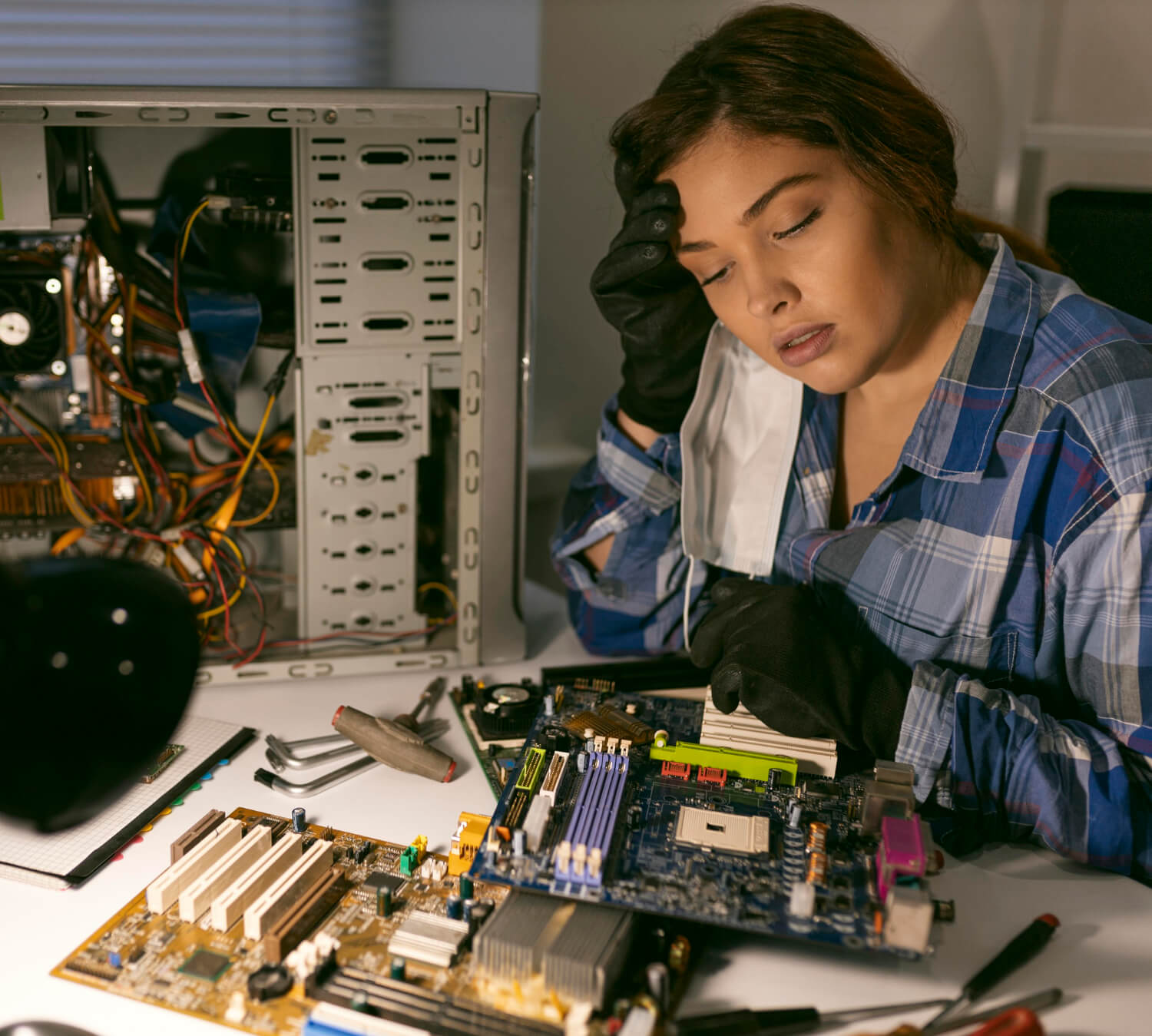
Nothing is more frustrating than waiting for your computer to load files, open apps, or even start up. Sluggish performance can eat into your productivity and make everyday tasks feel like a chore. Fortunately, many causes of a slow PC are fixable — and the solutions don’t always involve buying a new device. In this article, local technicians share real-world, practical tips on how to speed up a slow PC.
1. Understand Why Your PC Is Slow
Before fixing anything, it’s important to identify the cause. Common contributors include:
- Too many startup programs
- Insufficient memory (RAM)
- Full or fragmented hard drive
- Malware or adware infections
- Outdated drivers or system software
- Aging hardware components
At Computer Training And Repair, technicians use diagnostic tools to find bottlenecks and determine whether the problem is software- or hardware-related.
2. Reduce Startup Programs
🛠 Why It Matters:
When your PC boots up, many programs may launch automatically. Each one consumes memory and processing power, slowing down startup and ongoing performance.
✅ What You Can Do:
- Open Task Manager (Ctrl + Shift + Esc)
- Go to the Startup tab
- Disable programs you don’t need at startup
Common offenders include chat apps, update managers, and cloud sync tools.
3. Clean Up Hard Drive Space
🧹 Why It Matters:
A nearly full hard drive — especially on older mechanical drives — slows down read and write speeds. Windows needs free space for temporary files and virtual memory.
✅ What You Can Do:
- Delete unused files
- Uninstall programs you no longer use
- Move large media files to an external drive
- Use Disk Cleanup in Windows
Technicians can also check for disk errors and recommend whether an upgrade to a Solid State Drive (SSD) is worth it.
4. Upgrade to an SSD (Solid State Drive)
🔄 Why It Matters:
Traditional hard drives (HDDs) have moving parts that are much slower than SSDs. Many older PCs feel sluggish simply because they use HDD storage.
🚀 SSD Benefits:
- Faster boot times
- Quicker program loading
- Increased overall responsiveness
Local experts can clone your old drive to a new SSD so you don’t lose data.
5. Increase RAM (Memory)
Why It Matters:
If your computer runs out of RAM, it uses slower disk space as “virtual memory,” which makes everything lag.
When You Need More RAM:
- You run many programs at once
- You edit photos/videos
- You use memory-intensive applications
Techs in Belleville can test whether adding more RAM will improve performance and install it correctly.
6. Remove Malware and Adware
Why It Matters:
Malicious software can run hidden processes that slow your PC, display fake alerts, or hijack your browser.
What Technicians Do:
- Run professional-grade malware scanners
- Remove hidden infections
- Clean up unwanted programs
- Secure your system with real antivirus setup
DIY tools might not detect deeper threats, so expert cleanup can make a noticeable difference.
7. Update Windows and Drivers
Why It Matters:
Outdated drivers or system software can conflict with hardware and slow down performance.
What You Can Do:
- Go to Windows Update
- Update drivers through Device Manager
- Restart your PC
Local repair services can handle updates safely and ensure hardware compatibility.
8. Optimize Visual Effects
Windows includes animations and effects that look nice but can slow down older machines.
🔧 How to Adjust:
- Open System Properties
- Go to Advanced System Settings
- Choose Adjust for best performance
Turning off visual effects frees up system resources for real work.
9. Check for Overheating
Why It Matters:
When your PC overheats, it slows down to protect internal components. Dust buildup and failing fans are common causes.
Professional Service Includes:
- Internal cleaning
- Fan replacement
- Thermal paste refresh
Overheating can shorten the life of your CPU and other parts if untreated.
10. Reset or Reinstall Windows (If Needed)
⚠ When It’s Worth It:
If your system is bogged down by years of software installs, corrupted files, or deep-rooted issues, a fresh Windows install can dramatically improve performance.
What Experts Do:
- Backup important files
- Perform clean installation
- Restore data securely
This step should be done carefully to prevent accidental data loss — a technician can manage it safely.
Local Support in Belleville, ON
While you can try some speed-up methods yourself, professional assistance ensures:
✔ Proper diagnosis
✔ Safe handling of files and hardware
✔ Tailored upgrades
✔ Time savings and peace of mind
Local technicians understand the needs of residents, students, and small businesses in Belleville, Trenton, and surrounding areas.
When to Seek Expert Help
Get professional help if your PC:
- Never seems to get faster
- Freezes during important tasks
- Has repeated error messages
- Struggles with basic applications
Early intervention can prevent bigger issues and extend your PC’s lifespan.
Need Help Getting Your PC Running Fast Again?
Contact Computer Training And Repair:
40 Gordon St, Belleville, ON K8P 3E5, Canada
+1 613-969-4656
[email protected]
Our certified technicians provide honest diagnostics, clear pricing, and effective solutions to make your computer fast and reliable again.